IPad not charging? 7 quick fixes to try right now!
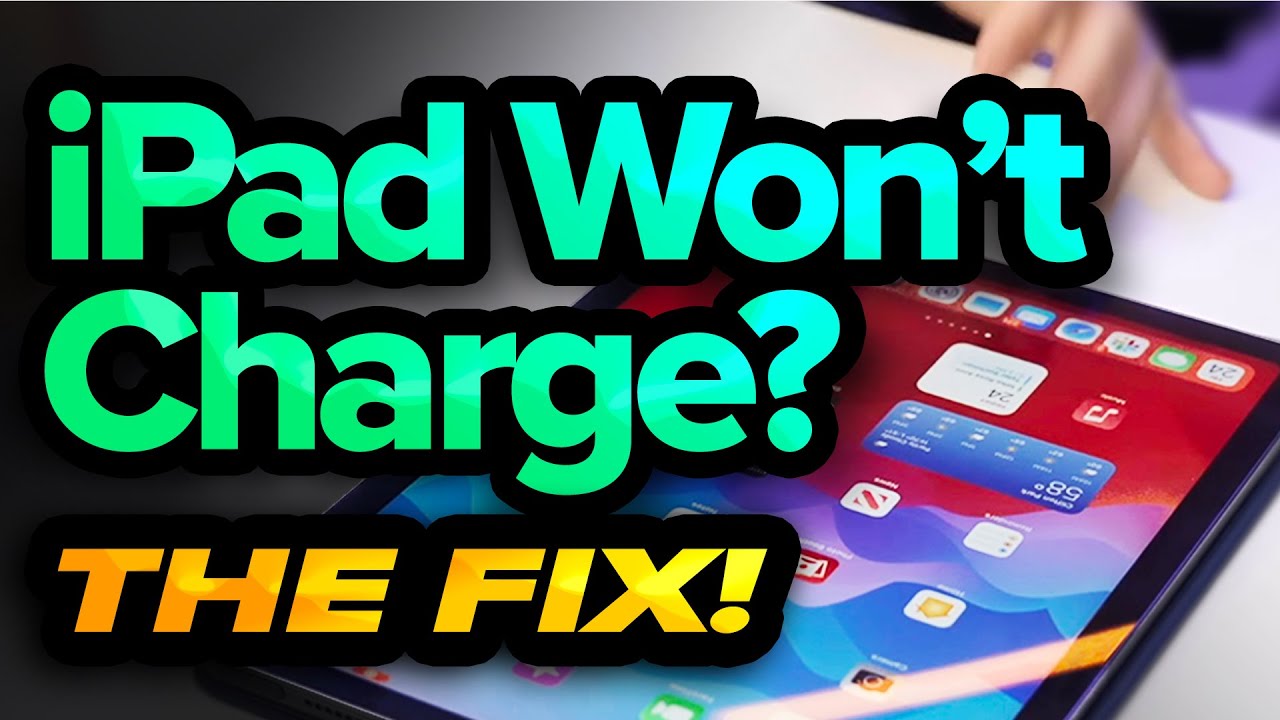
iPad Not Charging: Troubleshooting and Solutions
iPad Not Charging: Troubleshooting and Solutions
Have you ever experienced the frustration of your iPad not charging? 😩 You’re not alone! Many users encounter this issue at some point, and understanding the causes and solutions can greatly enhance your iPad experience. This article will walk you through the troubleshooting steps, present complementary tools to enhance the charging process, and ensure you get the most out of your device.
Common Issues When Your iPad Won’t Charge
When your iPad is not charging, it can be due to several factors. Here are some common issues to consider:
- Faulty Charging Cable: Ensure that the charging cable is functioning correctly. Frayed or damaged cables may prevent charging.
- Dirty Charging Port: Dust and lint can accumulate in the charging port, hindering the connection between the cable and the device.
- Unresponsive Device: Sometimes, the problem lies within the iPad itself. A software glitch or battery issue can be the culprit.
- Incompatible Adapter: Ensure that you are using a compatible charging adapter, as using third-party ones may not work effectively.
Troubleshooting Steps for iPad Not Charging
Here are some practical troubleshooting steps you can follow if your iPad is not charging:
1. Inspect Your Charging Cable and Adapter
Start with a close inspection of your charging cable and adapter. Look for visible damage, and try using a different cable or adapter to see if that resolves the issue. This is a simple yet effective first step!

2. Clean the Charging Port
Using a soft brush or compressed air, gently clean the iPad’s charging port. Removing any debris can help establish a better connection. This method can significantly impact charging capability.
3. Restart Your iPad
Sometimes, simply restarting your iPad can solve the problem, especially if a software glitch is at play. To do this, hold down the power button until the slider appears, then slide to power off.
4. Perform a Hard Reset
If restarting doesn’t work, you can try a hard reset. For iPads with Face ID: Press and quickly release the volume up button, then the volume down, and finally, press and hold the power button until you see the Apple logo. For earlier models: Press and hold both the home and the power buttons for about 10 seconds.
5. Update iOS Software
Make sure your iPad’s software is up to date. Sometimes, a software update can fix bugs related to charging issues. To check for updates, go to Settings > General > Software Update.
Outside Factors Affecting Charging
Your surroundings can also affect your iPad charging experience. For example:
- Temperature: Ensure that your iPad is in a suitable temperature range (32° to 95°F or 0° to 35°C). Extreme temperatures can hinder battery performance.
- Charging Environment: Avoid charging in an enclosed or hot space. Heat can slow down or stop the charging process.
Complementary Tools to Enhance Charging Experience
While dealing with your iPad not charging issues, consider using several complementary tools to enhance your experience. Here are some effective suggestions:
1. Portable Power Banks
Using a high-quality power bank can be a lifesaver. For instance, Anker PowerCore is known for its reliability and speed. By having one, you ensure that you’re never caught without charge, especially while traveling.
2. Charging Stands
Рeak your charging to the next level with charging stands. For instance, the Mophie Charging Stand offers the following advantages:
- Designed for convenience, allowing you to use your iPad while it is charging.
- Stylish design complements any workspace.
- Ensures a secure hold, preventing accidental drops.
- Compatible with various iPad models for versatility.
3. Smart Plugs
Consider using a smart plug, like the TP-Link Kasa Smart Plug, which can be programmed to charge your iPad at specific times, ensuring it’s always ready when you need it.
4. Multi-Port USB Chargers
Investing in a multi-port charger allows you to charge multiple devices simultaneously, improving efficiency. The Anker PowerPort 4 is a great choice.
5. Charging Cables with Enhanced Durability
Durable charging cables, such as those from Apple’s official store, can withstand wear and tear while ensuring optimal charging.
6. Battery Management Apps
Use battery management apps to monitor battery health on your iPad. Check out Apple App Store for reliable options. These apps can help you manage battery cycles and understand when to recharge.
7. Wireless Charging Pads
For users looking for convenience, wireless charging pads such as the Belkin Wireless Charging Pad provide an easy way to charge your iPad without dealing with cables.
8. Lightning to USB-C Adapters
Investing in a Lightning to USB-C adapter can enhance connectivity. This is especially useful if you want to connect your iPad to modern charging devices, leading to a faster charging experience:
- Supports fast charging when used with appropriate adapters.
- Enables connectivity with USB-C devices, expanding your options.
- Compact design makes it perfect for travel.
- Improves overall versatility and reduces cable clutter.
9. Charging Cases
Consider using a charging case that has built-in battery packs. These provide additional power on-the-go, ensuring your iPad stays charged throughout the day.
10. Surge Protectors
Using surge protectors can protect your device during power surges, ensuring its longevity. Brands like Belkin offer highly rated options that can keep your devices safe.
Frequently Asked Questions About iPad Not Charging
As we delve deeper into your iPad charging concerns, let’s address some frequently asked questions related to this issue.
Why does my iPad say “Not Charging” when plugged in?
This message can indicate that your device is using more power than the charger can provide, or there might be an issue with the charger or cable. Make sure you are using a compatible adapter, and check your cable for any damage.
Can I use my iPad while it’s charging?
Yes, you can use your iPad while it’s charging. However, keep in mind that heavy usage can slow down the charging process. Applications that demand more power—like games or video streaming—can affect charging speed.
What should I do if my iPad doesn’t charge after troubleshooting?
If none of the troubleshooting steps work, it may be time to contact Apple Support or visit an authorized service provider. There may be a hardware issue that requires expert attention.
Conclusion
Addressing charging problems with your iPad is essential for seamless device functionality. Following the troubleshooting steps outlined, along with incorporating complementary tools, can enhance your overall experience. Remember, maintaining your iPad not only keeps it charging but also prolongs its lifespan.
Common Reasons for iPad Not Charging
Has your iPad stopped charging? You’re not alone! 😟 There are several reasons why your precious device might not be getting the power it needs. Understanding these issues could save you time and stress. Let’s explore some common causes:
1. Faulty Charging Cable or Adapter
The most common reason for an iPad not charging is a faulty charging cable or adapter. Worn-out cables often show visible signs of wear, such as fraying or bending.
- Check for cracks and integrity in your cable.
- Try using a different cable or adapter if available.
- Ensure your power adapter is plugged in properly.
- Confirm the outlet is functioning by testing other devices.
2. Dirty Charging Port
Dirt and debris can accumulate in your iPad’s charging port, blocking a connection. Cleaning it is quick and easy. Use a soft brush or a toothpick to gently remove debris.
3. Software Glitches
Sometimes, the software may encounter issues. A simple restart can often resolve these glitches. Holding down the power button until “slide to power off” appears can refresh your device’s systems.
Troubleshooting Steps for iPad Not Charging
If your iPad is still not charging after checking the basics, try these troubleshooting steps to dig deeper into the issue:
1. Force Restart Your iPad
Force restarting is often an effective method. Press and quickly release the Volume Up button, press and quickly release the Volume Down button, and then hold the Side button until the Apple logo appears.
2. Update iOS
Software updates can resolve many performance-related issues. To update, navigate to Settings > General > Software Update and follow the prompts.
3. Restore iPad Using iTunes
If all else fails, restoring your iPad can help. Make sure to back up your data first. Connect your iPad to your computer, open iTunes, and select your device. Choose Restore to return it to factory settings.
Understanding Battery Health
Battery health plays an essential role in whether your iPad will charge adequately. If you notice that your battery drains quickly, it might mean the battery has aged.
Checking Battery Health
Go to Settings > Battery > Battery Health to see the condition of your battery. If it’s below optimal levels, consider a battery replacement.
Using Complementary Tools to Enhance Battery Management
While addressing the issue of iPad not charging, some tools can help you monitor and manage your battery usage efficiently. Here are ways to enhance your battery health:
1. Battery Monitoring Applications
Apps like CoconutBattery provide in-depth insights into battery health and charge cycles. They can inform you about wear levels and battery longevity.
2. Power Banks
If you often find yourself on the go, consider carrying a power bank. A good option is the Anker PowerCore 10000mAh.
- Compact size for portability.
- Dual USB ports for simultaneous charging.
- Smart charging technology for device protection.
- LED indicators to show battery level.
By using a power bank like Anker with your iPad, you can ensure you have backup power during emergencies.
3. Charging Stands
Consider purchasing a charging stand, which can improve airflow and prevent overheating while charging. Brands like Belkin offer reliable options.
4. Clean My Mac X
While not specific to iPads, this tool helps you remove unwanted files from your computer, ensuring it’s optimized for backups and iTunes management, helping overcome software glitches impacting charging.
5. External Charging Hubs
Sometimes, using a hub like the UGREEN USB-C Hub enhances connectivity and offers additional ports. It keeps your workspace organized while allowing multiple devices to charge.
6. Smart Plugs
Integrating a smart plug allows you to control power supply conveniently. Use theTP-Link Kasa Smart Plug for energy efficiency.
7. Cloud Storage Backup
Backing up via cloud services such as Dropbox can relieve the need for constant local backups and keep storage streamlined, optimizing device performance.
8. Charging Cables with Durability
Investing in high-quality charging cables, like those from Mophie, can prevent frequent replacements.
- Reinforced connections to prevent fraying.
- Enhanced data transfer speed.
- Longer cable length for flexibility.
- Compatible across different devices.
By using durable cables with your iPad, you enhance the longevity of your charging setup.
9. Battery Cases
Battery cases can offer extra power without carrying additional equipment. Options like Apple’s Smart Battery Case are ideal.
10. Wireless Charging
Consider implementing wireless charging pads, which can ease wear on charging ports. Devices like the Samsung Wireless Charging Pad make for a sleek solution.
Comparing the iPad Charging Experience
When looking at other devices, you may find that the iPad not charging experience differs significantly from other tablets. The iPad’s construction specifically caters to enhance user experience, making it stand out for the following reasons:
Comparison with Android Tablets
Unlike many Android tablets, the iPad integrates advanced technology ensuring more efficient energy management. While some Android devices can drain power faster due to more diverse software demands, the iPad uses system optimizations that maintain performance levels, even when charging.
Additional Features
The iPad often supports a quicker charge rate and better overall battery management thanks to Apple’s proprietary software, setting it apart from many generic tablets on the market.
Frequently Asked Questions About iPads Not Charging
Here are some common queries surrounding the topic of iPad not charging:
Can I use my iPhone charger for my iPad?
Yes, you can use your iPhone charger, but keep in mind that it may charge your iPad slower compared to the iPad’s original charger, especially if your iPad model is designed to require more power.
What should I do if my iPad still won’t charge?
If multiple troubleshooting steps have failed, it may be time to consult Apple Support or visit an authorized service provider for a professional diagnosis.
Will using different chargers hurt my iPad?
Using different chargers usually won’t damage your iPad, provided they comply with Apple standards. However, always prefer original or certified accessories for the best results.
How long does it take to charge an iPad fully?
Charging duration varies by model and charger type. Generally, it could take from 2 to 5 hours using the original charger.
Conclusion
Addressing the issue of iPad not charging encompasses understanding possible causes, applying suitable troubleshooting measures, and enhancing the overall charging experience with complementary tools. Whether it’s utilizing a power bank, a battery monitoring application, or durable charging cables, combining these methods will ensure your iPad remains powered efficiently. Engage actively with these solutions, and don’t hesitate to seek professional help when needed. What you discover next might surprise you—prolong your iPad’s life and efficiency with the right approach!
Preventive Measures to Avoid Charging Issues
iPad Not Charging? Here’s How to Resolve It and Optimize Performance 📱
If you’ve ever found yourself staring in frustration at your iPad not charging, you’re not alone. This common issue can arise due to various reasons, but don’t worry—there are effective solutions. In this article, we’ll explore what might be causing the problem, how to resolve it, and complementary tools that can enhance your overall iPad experience.
Common Reasons Why Your iPad Is Not Charging
Understanding the reasons behind your iPad not charging can lead you to the right solution. Here are some common culprits:
- Faulty Charging Cable: A worn or damaged cable can hinder the charging process.
- Damaged Charging Port: Debris or hardware issues in the charging port can block connectivity.
- Software Issues: Glitches in the operating system may affect charging capabilities.
- Overheating: If your device gets too hot, it may halt charging as a safety measure.
Quick Troubleshooting Steps for iPad Charging Issues
When your iPad is not charging, there are several troubleshooting steps you can take:
1. Check the Charging Cable and Adapter
Inspect your charging cable for any signs of wear or tears. Try using a different cable or adapter to see if that resolves the issue. If you’re using a third-party charger, ensure it is MFi certified for optimal performance.
2. Clean the Charging Port
Gentle cleaning of the charging port can remove debris preventing a secure connection. Use a soft brush or a can of compressed air to clear out any dust.
3. Restart Your iPad
Sometimes, a simple restart can rectify temporary software glitches. Hold down the power button until you see the Apple logo.
4. Update Software
Keeping your iPad software up to date can eliminate bugs that may cause charging problems. Check for updates in Settings under General > Software Update.
Complementary Tools to Enhance iPad Charging Experience
While addressing charging issues, consider using complementary tools that can optimize your charging workflow. Here are some innovative tools that can enhance your experience:
1. Battery Management Apps
Using apps like Battery Life can help you monitor your battery’s health, providing insights into when it might need maintenance or replacement.
2. Portable Power Banks
If your iPad is not charging well at home, consider a high-quality portable power bank. Devices like the Anker PowerCore series offer reliable backups for charging on the go.
- Dual Charging Ports: Charge multiple devices simultaneously.
- Rapid Charging Technology: Get your iPad powered up quickly.
- Compact Design: Easily portable for travel.
- High Capacity: Plenty of juice for extended use.
3. Smart Charging Pads
For convenience, consider using a wireless charging pad like PowerWave. It allows seamless charging without the hassle of cables.
4. iPad Support Communities
Websites such as Apple Support Communities offer forums where users share solutions, tips, and tricks for common issues.
5. Cleaning Kits
Using a cleaning kit designed for electronics can help maintain both the ports and the screen of your iPad, preventing unnecessary wear and tear that might affect charging.
6. USB-C Hubs
If your iPad model supports USB-C, using a hub like Apple USB-C Hub can provide extra ports for simultaneous charging and data transfer.
7. External Battery Cases
Battery cases are an excellent solution to extend the life of your device throughout the day. Models from brands like Apple provide built-in power sources that keep your iPad charged on the go.
8. Smart Plugs
Pair your iPad with smart plugs such as the TP-Link Kasa Smart Plug. This allows you to schedule charge times, ensuring your device is always ready when you need it.
- Remote Control: Turn devices on/off via a smartphone app.
- Energy Monitoring: Track energy usage over time.
- Scheduling: Automate charging times to save energy.
- Compatibility: Works with voice assistants for seamless integration.
9. iPad Stand with Charging Station
A charging stand not only keeps your iPad charging but also allows easy viewing and interaction. It declutters your space and provides a designated area for your device.
10. Screen Protectors and Cases
Investing in quality screen protectors and cases can prevent damage and assist in keeping the charging port accessible and free of clogs.
iPad Battery Health Practices
Maintaining optimal battery health is crucial for ensuring your iPad does not face charging issues often. Here are some best practices:
- **Avoid Extreme Temperatures:** Keeping your iPad in environments outside the recommended temperature range can shorten battery life.
- **Regularly Cycle Your Battery:** Allow your battery to go down to 20% and recharge it fully to help recalibrate the battery meter.
- **Enable Low Power Mode:** Activate this setting to extend battery life when you notice a drop in power.
Conclusion
When battling the frustration of an iPad not charging, understanding the causes and solutions can help restore functionality. By incorporating complementary tools and following best practices for battery maintenance, you’ll enhance both your device’s performance and your overall experience. Remember, a proactive approach in caring for your iPad can prevent future issues, making sure you’re always ready to enjoy its features to the fullest. Stay charged and connected!
Understanding Your iPad Not Charging Issue
Have you ever found yourself in the frustrating situation where your iPad is not charging? 🥺 You’re not alone! A lot of users encounter this problem at some point. In this comprehensive guide, we will dive deep into various causes of why your iPad may not be charging, effective troubleshooting tips, and how to enhance your experience using complementary tools.
Common Causes of iPad Not Charging
Before jumping into solutions, it’s essential to understand the common reasons behind your iPad not charging. Here are several factors that might contribute:
- Faulty charging cable: A damaged or non-compatible charging cable can cause charging issues.
- Worn-out charging port: Dust and debris in the charging port may prevent a good connection.
- Software glitches: Issues in your device’s software can sometimes interrupt charging.
- Battery issues: A depleted or faulty battery may hinder charging.
Troubleshooting Steps When Your iPad is Not Charging
Here are several effective troubleshooting steps you can follow if your iPad isn’t charging:
1. Check the Charging Cable and Adapter
Inspect your charging cable and adapter for visible signs of damage. If they seem worn out, consider replacing them with genuine Apple accessories that ensure compatibility.
2. Clean the Charging Port
Use a flashlight to inspect the charging port for debris. A can of compressed air can help blow out any dust that might be obstructing the connection.
3. Restart Your iPad
A simple restart can often resolve minor software issues. Press and hold the Power button until you see the slider, then slide to power off.
4. Update iPadOS
Make sure your device is running the latest version of iPadOS. Outdated software can create functionality issues, including charging problems.
5. Perform a Hard Reset
For persistent issues, try a hard reset. Press and hold both the Home and Power buttons until you see the Apple logo.
6. Test with Another Charger
If possible, test your iPad with a different charger or cable. This helps determine if the charger itself is the problem.
When to Seek Professional Help
If you have tried all these troubleshooting steps and your iPad is still not charging, it might be time to seek professional help. Authorized service centers can diagnose battery or hardware issues that may require expert intervention.
Benefits of Complementary Tools
While addressing the basic problem of your iPad not charging, integrating complementary tools can enhance your experience. Here are a few ideas on how to effectively combine tools with your iPad:
1. Use Battery Health Monitoring Apps
Applications like Battery Life can help track your battery health and alert you when it might need a replacement.
2. Employ a Quality Screen Protector
Protect your device from physical damage while ensuring that the ports are accessible. A good protector can enhance longevity by preventing debris accumulation.
3. Connect to Power Banks
Using a power bank can be a lifesaver when you find yourself without an outlet. Brands like Anker offer reliable solutions to extend your iPad usage.
4. Utilize Device Management Software
Tools like Internet Cleaner can assist you in optimizing your iPad’s performance, which may indirectly improve battery life.
5. Invest in an Active Cooling Pad
While not directly tied to charging, keeping your iPad cool can prolong battery life. An active cooling pad is an excellent option during usage-intensive tasks. Find out more about it on Cooler Master.
6. Try Wireless Charging Pads
If your iPad supports wireless charging, investing in a quality wireless charging pad can enhance convenience. Look into Belkin for reliable options.
7. Download Maintenance Apps
Apps specifically designed to maintain system performance can help keep software issues at bay. For more, explore CCleaner for your needs.
8. Consider Charging Stations
A multi-device charging station can streamline the charging process. Here’s why you should consider it:
- Organizational Efficiency: No more clutter of cables on your desk.
- Simultaneous Charging: Charge multiple devices at once, which saves time.
- Compatibility: Ensure that your devices charge quickly and safely.
- Easy Access: Easy to connect and disconnect devices without needing to sort through cables.
9. Explore Apple Support Solutions
Apple’s support website offers extensive guidelines for troubleshooting battery issues. Check it out here.
10. Regularly Update Apps and Software
Keeping your apps and iPadOS updated ensures optimal performance, minimizing potential conflicts that could hinder charging.
Conclusion
Understanding why your iPad is not charging and knowing how to troubleshoot the issue can significantly enhance your user experience. Coupling practical solutions with complementary tools can optimize your usage and prolong the life of your device. Never hesitate to take advantage of professional support if the problem persists!
