Android Auto Not Working? 5 Fixes to Try in 2025
Understanding Why Your Android Auto is Not Working
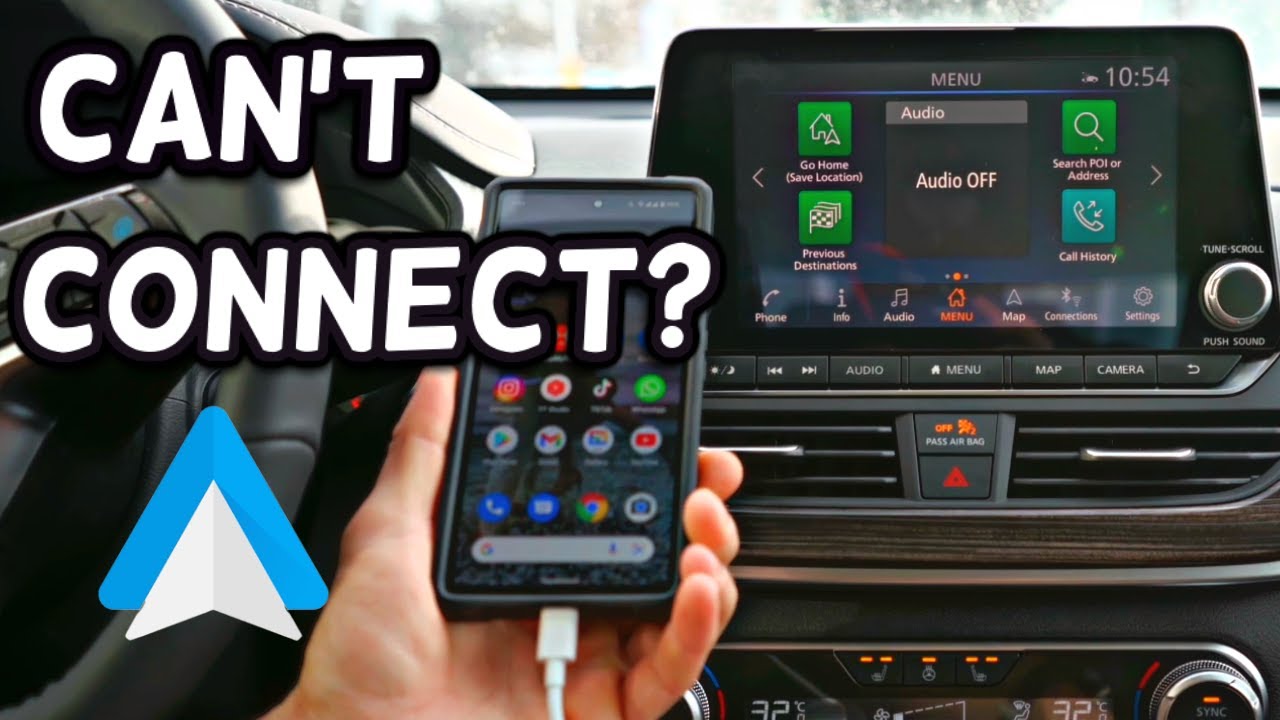
Have you ever found yourself frustrated while driving because Android Auto is not working? 🚗 You’re not alone! Many users encounter issues that can disrupt their driving experience and safety. In this article, we’ll explore common reasons why Android Auto may not be functioning as expected, making your daily commutes or long drives a hassle. From connectivity problems to software glitches, we’ll go through it all systematically.
Common Issues with Android Auto
When using Android Auto, several common issues could prevent it from working correctly. Here are a few frequent problems:
1. Poor USB Connection
One of the most frequent culprits is a faulty or low-quality USB cable. A poor connection can cause Android Auto to disconnect unexpectedly. Always ensure you are using a high-quality, compatible USB cable for a stable connection.
2. Phone Settings and Permissions
Sometimes, it’s all about the settings on your device. Check if Android Auto is enabled in your phone’s settings and that all necessary permissions, like notifications and location services, are granted.

3. Incompatible Devices
Not all devices support Android Auto. Make sure your phone and car head unit are compatible. You can find the compatibility list on the official Android Auto website. If either device is outdated, updating is crucial.
4. Software Updates
Outdated software can lead to issues. Ensure that your phone and car’s software are up to date. This could resolve many connectivity errors.
Diagnosing the Issue
Now that we’ve touched on common problems, how can you diagnose what’s going wrong with Android Auto? Here’s a simple troubleshooting guide:
Step-by-Step Troubleshooting
- Check Cable and Connections: Replace your charging cable with a known good one to rule out cable issues.
- Restart Devices: Sometimes a simple reboot of your smartphone and car can reset the connection.
- Test Another Device: If possible, connect another phone to see if the issue lies with your device or the car system.
- Factory Reset: As a last resort, you may want to reset your car’s infotainment system, keeping in mind that this will erase all custom settings.
Enhancing Your Android Auto Experience
While you’re figuring out why Android Auto is not working smoothly, there are complementary tools and apps you can utilize to enhance your driving experience. Here are ten ideas to consider:
1. Google Maps
Integrate Google Maps into your Android Auto setup for real-time navigation and traffic updates, making your trips more efficient.
2. Spotify or Music Apps
Using a music app like Spotify allows instant access to your favorite playlists while driving without distractions. Just say, “Play my driving playlist!”
- Integrates seamlessly with Android Auto
- Hands-free control through voice commands
- Access to podcasts and playlists
- Offline listening capabilities to save data
3. Tasker
Use Tasker to automate certain tasks when your phone connects to Android Auto. This could include launching specific apps or even reading messages aloud.
4. WhatsApp
Stay connected by using WhatsApp. Android Auto allows you to receive and respond to messages via voice commands, keeping your hands on the wheel.
5. Weather Apps
Apps like The Weather Channel provide quick updates about weather conditions before you head out.
6. Waze
For real-time traffic updates, Waze is a great alternative. It helps navigate through traffic while keeping you informed about road hazards.
7. Audible
Drive safely while enjoying audiobooks using Audible. This lets you listen to stories without taking your eyes off the road.
8. Google Assistant
The built-in Google Assistant feature can be seamlessly integrated with Android Auto. It not only helps with navigation but also allows for hands-free messaging and calling.
- Hands-free voice commands for easy operation
- Checks the weather or read notifications aloud
- Sets reminders or alarms while you drive
- Controls smart home devices on the go
9. Calendar Apps
Calendar integrations can prompt you with reminders about appointments. Sync your Google Calendar for timely notifications on the road.
10. Voice Assistant Apps
Apps like Amazon Alexa allow you to integrate smart features into your driving experience. Just connect it to Android Auto and enjoy seamless voice command options.
Potential Fixes for Persistent Issues
If your Android Auto continues not to work, consider these potential fixes:
Clearing the Cache
Clearing the cache for the Android Auto app can resolve many underlying issues. Go to your phone’s settings, find the application list, and clear cache data. This action can help the app run more smoothly.
Reinstalling the App
If problems persist, uninstall and then reinstall the Android Auto app. This can fix corrupted files or errors that may exist within the app.
Hardware Check
In some cases, hardware issues may be at play. Check if there are any updates available for your car’s infotainment system that could address compatibility problems.
Using Android Auto with Different Operating Systems
Have you considered how the experience differs when connecting your device across various operating systems? While Android Auto is designed for Android devices, it’s worth mentioning that Apple CarPlay offers similar functionalities for iOS users. However, the compatibility and interface of Android Auto often coexist better with Android’s ecosystem, providing a smoother transition between apps.
Resources and Further Reading
For a deeper understanding of Android Auto, consider checking these resources:
- Official Android Auto Page
- CNET’s Comprehensive Guide to Android Auto
- Digital Trends Android Auto Overview
- Wired’s Android Auto Insights
Remember, if you’re experiencing issues where Android Auto is not working, you’re not powerless against it. With the right tools and troubleshooting steps, you can often find a quick resolution that will enhance your driving sessions. Leveraging the suggested complementary tools can not only mitigate these issues but also elevate your overall experience on the road.
Fixing Android Auto Not Working: A Comprehensive Guide
Have you ever experienced the frustration of your Android Auto not working? 😩 You’re not alone! Many users face challenges that prevent this convenient feature from connecting properly, impacting the seamless integration of your smartphone with your vehicle. In this article, we’ll dive deep into common problems associated with Android Auto, explore effective troubleshooting strategies, and suggest complementary tools that enhance its functionality. Let’s get started!
Understanding Android Auto
Android Auto is designed to extend the functionality of your Android smartphone to your car’s dashboard, providing easy access to apps, navigation, calls, and messages. The benefits are clear, but what happens when it doesn’t perform as expected? Understanding the root of the issues is essential for troubleshooting effectively.
Why is Android Auto Not Working?
It’s no surprise that various factors can hinder Android Auto’s performance. Here are some common reasons why you might encounter issues:
- Incompatible Device: Ensure your device is compatible with Android Auto.
- Outdated Software: Regularly check for updates on your device and the app itself.
- Connection Issues: Whether wired or wireless, check the stability of your connection.
- Settings Configuration: Ensure that your settings in your vehicle’s infotainment system are correctly configured.
Troubleshooting Android Auto Connectivity Issues
To resolve your issues with Android Auto not working, follow these troubleshooting steps:
1. Check Device Compatibility
Before diving into more complex solutions, verify that both your smartphone and vehicle support Android Auto. You can refer to the official Android Auto website for compatibility lists.
2. Update Your Software
Outdated software can lead to various connectivity problems. Make sure to update both your phone’s Android version and the Android Auto app itself:
- Go to Settings > System > System Update.
- Visit the Google Play Store to check for Android Auto updates.
3. Inspect Your Connections
For wired connections, try a different USB cable or port. A faulty cable can often be the culprit. For wireless connections, ensure that Bluetooth is enabled and your phone is connected to your car system.
4. Reconfigure Your Settings
Sometimes, your vehicle’s settings might need adjustment for Android Auto to function correctly. Check your car’s settings and enable necessary permissions listed in your phone’s Android Auto settings.
Common Errors and Resolutions
Understanding common errors can make troubleshooting easier. Here are a few frequent issues you might encounter along with their solutions:
Error 1: No Connection Found
If you receive a ‘no connection’ error, try the following:
- Toggle Bluetooth off and on.
- Restart your phone and the car’s infotainment system.
- Reconnect the app using a fresh USB port if using a wired connection.
Error 2: Apps Not Launching
If apps aren’t launching, this may be due to a missing permission. Check if Android Auto has the necessary permissions to run:
- Go to Settings > Apps > Android Auto.
- Select Permissions and ensure all are enabled.
Error 3: Voice Commands Not Working
Voice commands can offer a hands-free experience, but if they aren’t working, confirm that:
- Google Assistant is set up on your device.
- You have an active internet connection.
Complementary Tools to Enhance Android Auto
While troubleshooting is essential, using complementary tools can immensely enhance your experience with Android Auto. Here are a few suggestions to consider:
1. Google Maps
Using Google Maps with Android Auto is a straightforward way to get directions and monitor traffic conditions. It provides up-to-date information on routes, real-time traffic updates, and alternative route suggestions.
2. Spotify
For music lovers, integrating Spotify can elevate your in-car experience.
- Access personal playlists easily while driving.
- Discover new music through Spotify’s curated playlists.
- Utilize voice commands to change songs without distractions.
- Enjoy a hands-free music experience while navigating.
3. WhatsApp
Staying connected is vital, and WhatsApp allows you to send and receive messages through Android Auto’s interface, ensuring you remain in touch safely.
4. Waze
Waze is another effective navigation tool that can be used with Android Auto, offering real-time updates and user-generated alerts about road conditions.
5. Audible
If you enjoy audiobooks, consider using Audible. You can listen to your favorite books during commutes while engaging safely with Android Auto.
6. Podcast Addict
For podcast enthusiasts, Podcast Addict integrates smoothly with Android Auto, providing a hands-free way to enjoy your favorite episodes on the go.
7. Google Play Music
Enjoy personalized music by linking Google Play Music with Android Auto. Access your music library while driving, making it easy to switch tunes.
8. Tasker
Utilizing automation with Tasker enhances your experience by allowing you to create automations that trigger specific actions in response to driving situations.
- Automate responses to messages when driving.
- Set GPS-based actions for app launches.
- Control smart devices remotely while on the road.
- Create personalized driving profiles to tailor your app setup.
9. Google Assistant
Your personal assistant can take your driving experience to the next level. Use Google Assistant to navigate, play music, or check messages without taking your hands off the wheel.
10. Android Messages
With Android Messages, you can send and receive text messages through Android Auto. Keeping connected while driving becomes much safer and seamless.
Conclusion: Maximizing Your Android Auto Experience
Experiencing Android Auto not working? Understanding the troubleshooting steps and complementary tools we discussed can significantly enhance your driving experience. By seamlessly integrating applications like Google Maps, Spotify, and Waze, you not only ensure a smoother ride but also maximize the utility of Android Auto itself.
Stay proactive about updates, connections, and app settings. With the right approach, you can enjoy all that Android Auto has to offer while keeping safety a top priority.
Resetting and Updating Your Android Auto Setup
Understanding Why Android Auto is Not Working
Many users encounter issues with Android Auto not working effectively. This can be frustrating, especially when you’re expecting a seamless driving experience. Whether it’s connectivity issues or problems with the app itself, understanding the root causes can help remedy these situations. 🛠️
Common Symptoms of Android Auto Malfunctions
- Inability to connect to the vehicle’s infotainment system.
- Frequent crashes or freezing of the application.
- Audio streaming interruptions, leading to a poor driving experience.
Initial Troubleshooting Steps
Before diving deep, there are a few preliminary checks that can often resolve connectivity issues.
Check Your Smartphone Compatibility
Ensure that your smartphone is compatible with the Android Auto application. Most modern Android phones qualify, but it’s essential to verify compatibility on the official Android Auto website.
Verify Your Vehicle’s Infotainment System
Your vehicle must also support Android Auto. Check your car’s user manual or the manufacturer’s website for compatibility information. If your car is compatible, ensure that the system is updated. Here’s how you can do this:
- Navigate to your car’s main settings menu.
- Find the “About” section or “Software Update” menu.
- Follow the prompts to check for updates.
Troubleshooting Connection Issues
Once you confirm compatibility, focus on solving connection issues. Here are some effective strategies:
Use Quality Cables
One of the main reasons for connection failures during Android Auto usage is using inferior or damaged USB cables. High-quality cables ensure consistent data transfer and power supply. Consider investing in certified cables from reputable brands.
Reseat Connections
Occasionally, simply unplugging and reconnecting the USB cable can solve the issue. Make sure to do this with the car’s engine on, as off-state connections may not register correctly.
App-Specific Troubleshooting
Clearing the Cache of Android Auto
Sometimes, clearing the app’s cache can resolve issues.
- Go to your phone’s settings.
- Navigate to “Apps”, then find “Android Auto”.
- Tap on “Storage” and select “Clear Cache”.
Clearing the cache helps refresh app data, which can enhance performance and free up space.
Reinstall Android Auto
If problems persist, consider uninstalling and reinstalling the app. This process often fixes deeper issues:
- Uninstall Android Auto via your phone settings.
- Visit the Google Play Store to download it again.
Exploring Connectivity Options
Android Auto typically relies on a wired connection, but wireless options are becoming increasingly popular. However, if Android Auto is not working wirelessly, it’s crucial to examine underlying factors:
Ensure Wi-Fi and Bluetooth are Enabled
For a wireless connection, ensure both Wi-Fi and Bluetooth are active on your smartphone. Without these features enabled, Android Auto cannot function correctly. You can check by swiping down to reveal the quick settings menu on your Android device.
Evaluating Smartphone Settings
GPS and Location Services
Android Auto often requires access to your GPS and location services. Ensure that these features are enabled in your smartphone’s settings, as they improve navigation accuracy and app functionality.
Battery Optimization Settings
Sometimes, phone settings can restrict app activity to save battery life. Check battery optimization settings and ensure that Android Auto is not restricted. You can do this by:
- Going to Settings > Battery > Battery usage.
- Selecting “Android Auto” and choosing “Don’t optimize”.
Advanced Solutions for Android Auto Issues
Factory Resetting Your Smartphone
If all else fails, a factory reset might be required. Remember to back up all important information because this process erases everything on your device. To initiate a factory reset:
- Go to Settings > System > Reset Options.
- Select “Erase all data (factory reset)”.
Contacting Customer Support
If you’ve tried all the troubleshooting steps and Android Auto is still not working, consider reaching out to customer support. They’ll guide you through more advanced solutions and may help identify hardware issues.
Complementary Tools to Enhance Your Experience
While focusing on resolving issues with Android Auto, you might want to consider complementary tools that can enrich the overall experience. Here are some suggestions that can work well together:
1. Google Maps
If your Android Auto system isn’t providing accurate navigation, using Google Maps directly on your smartphone can offer the guidance you need. It’s intuitive and user-friendly, making navigation a breeze.
2. Spotify
Listening to music via Spotify while using Android Auto can greatly enhance your driving experience:
- Access to millions of tracks and playlists.
- User-friendly interface for seamless control.
- Offline listening capabilities, so you won’t use data.
- Integration with voice commands, making it safe to use while driving.
3. Waze
Waze provides real-time traffic information, helping you avoid delays. Its integration with Android Auto makes it ideal for regular drivers.
4. Audible
For those who prefer audiobooks, using Audible with Android Auto can transform your driving time into a productive and entertaining experience.
5. Google Assistant
Utilizing Google Assistant can drastically improve your interaction with Android Auto by providing voice commands. You can make calls, play music, and access navigation without taking your hands off the wheel.
6. Tasker
Tasker automates various smartphone actions while you use Android Auto, enhancing your user experience through customized settings based on context.
7. Dropbox
Using [Dropbox](https://www.dropbox.com) can help keep your essential documents accessible while on the go, allowing for file management even when you’re connected to Android Auto.
8. Android File Transfer
Android File Transfer is useful for managing files easily when transitioning between your phone’s storage and your car’s system. This app can help ensure that all your media is uploaded properly:
- Easy file transfers from your Android device to Mac.
- Simple interface to manage documents and files.
- Allows you to manage your music library on Android Auto effectively.
- Helps keep your files organized for a cleaner user experience.
9. IFTTT
Combining Android Auto with IFTTT streamlines tasks. For example, you could automatically share your location with someone every time you start navigating.
10. DashCommand
DashCommand gives you an array of performance metrics in real-time. This tool can provide useful data as you drive, helping enhance the driving experience.
Final Thoughts on Maximizing Android Auto Performance
Experiencing Android Auto not working can be frustrating, but employing the right troubleshooting techniques often resolves the issue. Furthermore, using complementary tools can enhance your overall driving and multimedia experience. Remember, a smooth connection often relies on maintaining both the software and hardware in top condition.
Stay proactive in managing connections and seek assistance when necessary. You’ll be on the road with effective automotive tech in no time! 🚗✨
Seeking Professional Help When All Else Fails
Android Auto Not Working: Solutions and Tips 🤔
Have you ever experienced the frustration of your Android Auto not working? It can leave you feeling stranded, especially when you rely on it for navigation, music, and communication while driving. This article delves into the possible reasons behind Android Auto’s malfunction and how you can troubleshoot the issues effectively. But that’s not all; we’ll also explore complementary tools that can enhance your experience with Android Auto. Let’s drive right in!
Common Reasons for Android Auto Not Working
Before resolving the issue, understanding the common reasons for Android Auto not working is essential. Here are a few potential culprits:
- USB Connection Issues: A faulty cable or port could interrupt the connection.
- Software Compatibility: Ensure that both your Android device and car’s infotainment system are up to date.
- App Permissions: Missing permissions may hinder Android Auto from accessing necessary features.
- Device Settings: Incorrect settings on your phone might prevent a proper setup.
How to Fix Android Auto Not Working
Once you’ve identified the potential reasons, here are some practical steps to troubleshoot when your Android Auto is not working:
1. Check Your USB Connection
Start by inspecting your USB cable. Make sure it is functioning correctly and compatible with your device. A compatible cable is more than just a charging cable—it’s crucial for data transfer! Connect it to a different USB port in your car if possible, to rule out port issues.
2. Update Android Auto and Your Device
Outdated software can lead to compatibility issues. Check for updates on your Android Auto app and your device’s operating system. Keeping everything up to date ensures smooth functioning.
3. Review App Permissions
Your Android device may require certain permissions to operate Android Auto effectively. Ensure the app has access to your contacts, texts, and GPS settings by navigating to Settings > Apps > Android Auto > Permissions.
4. Clear App Cache and Data
Another useful fix is to clear the Android Auto app’s cache and data. Navigate to Settings > Apps > Android Auto > Storage, then select “Clear Cache” and “Clear Data.” Restart the app afterwards.
Checking Compatibility
Not all phones and vehicles are compatible with Android Auto. To ensure compatibility, visit the Android Auto compatibility page. If your vehicle is not listed, consider alternatives that integrate successfully with Android devices.
Complementary Tools to Enhance Android Auto
While troubleshooting, consider integrating additional tools that enhance your experience when your Android Auto is not working. Here are a few great suggestions:
- Google Maps: If navigation is a primary feature for you, ensure you have the Google Maps app updated and linked properly.
- Spotify: When Android Auto is functioning, music streaming is straightforward through Spotify. Make sure it is synced correctly.
- Tasker: This automation tool can help modify settings based on location or connected devices, enhancing your usability when Android Auto is glitchy.
- Google Assistant: It can operate independently of Android Auto to read texts and manage calls, ensuring safety while driving.
- Waze: If you prefer crowd-sourced navigation, using Waze can disruptively maintain navigation while Android Auto acts up.
- Bluetooth Settings: Double-check your Bluetooth settings, as this can also interfere with Android Auto functionality.
- Android Device Manager: Ensure your device features a strong signal; poor connectivity can adversely affect performance.
- CarPlay Alternatives: If you’re contemplating other options, solutions like CarPlay, despite focusing on Apple devices, can offer insights into managing connectivity issues.
Using Google Maps with Android Auto
By using Google Maps together with Android Auto, you can achieve more efficient results in navigation. Here’s how Google Maps enhances your experience:
- Real-time Traffic Updates: Get live updates on traffic conditions to avoid delays.
- Voice-activated Directions: Control your navigation without taking your hands off the wheel.
- Points of Interest: Discover restaurants, gas stations, and other amenities while driving.
- Offline Maps: Download maps in advance to navigate even when you have weak signals.
Integrating Spotify into Your Android Auto Experience
When you incorporate Spotify with Android Auto, you significantly enhance your music listening experience while on the road:
- Personalized Playlists: Access playlists tailored to your taste effortlessly.
- Voice Control: Use voice commands to find songs or change tracks without distraction.
- Curated Discoveries: Explore new music through Spotify’s recommendations based on your listening habits.
- Multi-device Sync: Enjoy continuity by switching devices but maintaining your playlist.
When to Seek Professional Help for Android Auto
If troubleshooting Android Auto continues to yield no results, it might be time to consider professional help. Here are scenarios that warrant such a decision:
- Technical Updates: If your vehicle’s infotainment system requires a firmware update, a dealer may be needed.
- Hardware Problems: Issues such as malfunctioning ports or cables might require replacement or repairs.
- Software Bugs: Persistent bugs may necessitate professional diagnostic tools that standard users don’t possess.
Exploring Alternative Options
While Android Auto provides a unique experience tailored for Android users, it’s worthwhile to recognize some alternative solutions in the market. However, they should primarily serve to highlight Android Auto’s competitive advantages.
Among these, CarPlay stands out as a straightforward competitor predominantly for Apple users. Unlike CarPlay, Android Auto not working emphasizes seamless integration with various devices, thus offering a robust solution that fosters connectivity while ensuring safety protocols are firmly upheld.
Staying Updated on Android Auto Developments
The tech world is ever-evolving, and Android Auto is no exception. Repeated improvements and updates enhance features to provide users with a better experience. Stay updated by checking official sources like the Android Auto official page for the latest news and troubleshooting guides.
Pro tip: Follow user forums and social media channels for tips and community insights on best practices when using Android Auto. You never know what unique fix may help alleviate that pesky Android Auto not working problem!
