How to Pair Apple Watch to New Phone: 7 Quick Steps for 2025
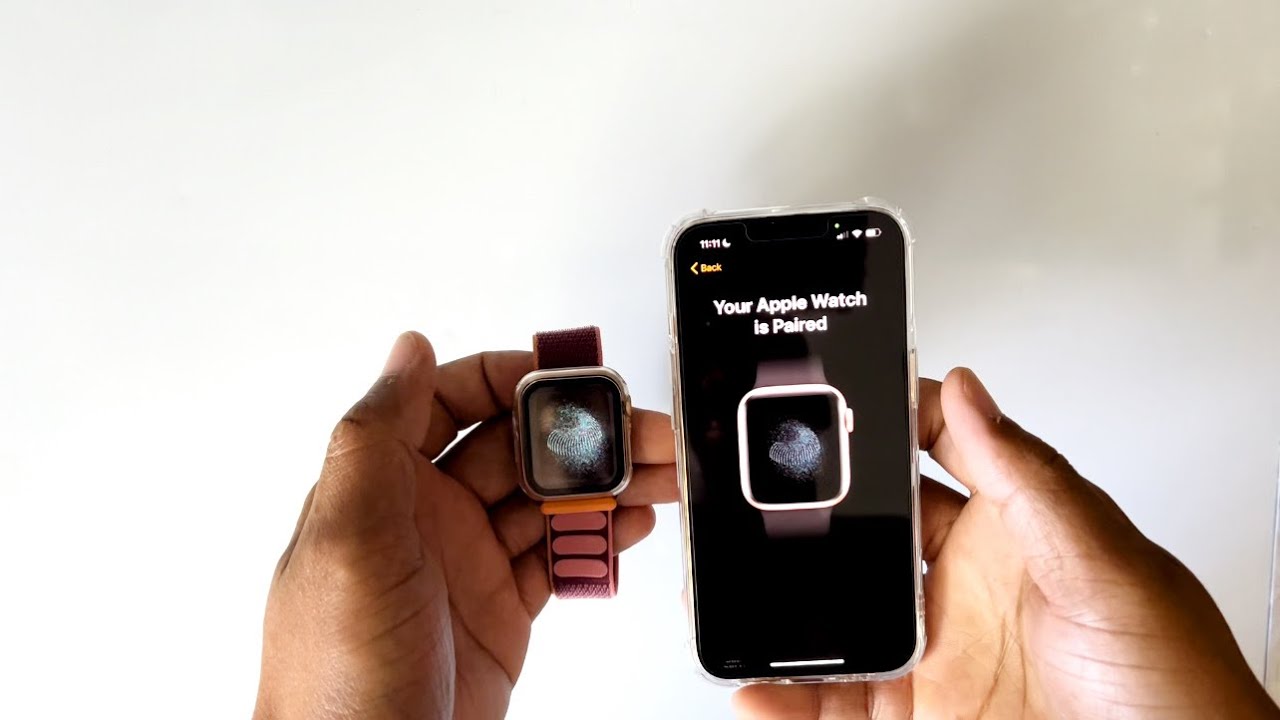
How to Pair Apple Watch to New Phone
 🕒 Have you recently upgraded your phone and are now wondering how to pair your Apple Watch to the new device? The process is straightforward and ensures that you continue to enjoy all the features your smartwatch offers. In this guide, we will walk you through the steps for a seamless transition, as well as provide valuable tips and complementary tools to enhance your experience.
Understanding the Basics of Apple Watch Pairing
Before diving into the pairing process, it’s crucial to understand that pairing an Apple Watch to a new phone typically requires you to unpair it from the old device. This is essential to ensure that your data remains intact and is transferred correctly. The process, while simple, can sometimes present challenges, which we’ll address below.
Requirements for Pairing
To successfully pair your Apple Watch to a new phone, ensure you have:
- Your new phone powered on and updated to the latest iOS version.
- Your Apple Watch charged and on your wrist.
- The Apple Watch app installed on your new phone.
With these basics covered, let’s move to the actual pairing process.

Step-by-Step: How to Pair Your Apple Watch to a New Phone
Step 1: Unpair Your Apple Watch from the Old Phone
1. **Open the Apple Watch app** on your old phone.
2. **Select your watch** at the top of the screen.
3. Tap the Info icon (i) next to the watch you want to unpair.
4. Choose Unpair Apple Watch.
This step might prompt an option to keep or erase your data. If you plan to set up your Apple Watch with your new phone, keeping your data is advisable.
Step 2: Set up Your New Phone and Open Apple Watch App
Once unpairing is complete, proceed with these actions:
1. **Power on your new phone** and sign in to your Apple ID.
2. **Download and open the Apple Watch app**.
Step 3: Pair Your Apple Watch with the New Phone
1. On your iPhone, tap Start Pairing in the Apple Watch app.
2. Hold your watch up to the camera on your new phone to scan the pairing animation on the watch.
3. Follow the onscreen instructions to finish the setup. If prompted, restore from a backup if you’d like to keep your previous settings.
Troubleshooting Pairing Issues
Sometimes, you may encounter difficulties while attempting to pair your Apple Watch to a new phone. Here are common issues and their solutions:
- Watch Not Detected: Ensure Bluetooth and Wi-Fi are enabled on your new phone.
- Connection Problems: Restart both your Apple Watch and new phone to reset connections.
- Data Transfer Errors: Make sure both devices are charged and connected to a stable network.
Complementary Tools to Enhance Your Apple Watch Experience
Pairing your Apple Watch to a new phone is just the beginning. To maximize your Apple Watch’s capabilities, consider incorporating the following tools that work harmoniously with how to pair Apple Watch to new phone:
- Apple Health: Sync your health data seamlessly.
- Find My: Locate your devices easily if misplaced.
- Apple Music: Stream music directly from your wrist.
- Fitness+: Elevate your workouts with guided sessions.
- Apple Wallet: Use your watch for payments on the go.
- App Store: Download additional compatible apps enhancing functionality.
- AppleCare: Ensure your devices are protected with coverage plans.
Exploring Key Complementary Tools
1. Apple Health
Apple Health serves as the primary app for managing your health data. By syncing with your Apple Watch, you can:
- Track workout metrics like heart rate and calories burned.
- Set health goals and monitor your progress effectively.
- Integrate data with third-party health apps for a comprehensive view.
- Share your health data with healthcare providers securely.
2. Fitness+
Fitness+ is an incredible service that works seamlessly with your Apple Watch. Benefits include:
- Access to a wide range of guided fitness classes.
- Real-time metrics displayed on your Apple Watch during workouts.
- Personalized workout recommendations based on your preferences.
- Integration with other Apple devices for a holistic fitness approach.
Tips for A Better Experience
To ensure smooth operation and pairing, consider the following tips:
- Regularly update both your Apple Watch and iPhone to the latest software.
- Maintain a strong Wi-Fi connection when transferring content and data.
- Explore the settings in your Apple Watch app to customize notifications and apps.
- Take advantage of Apple’s support resources if you encounter persistent issues.
What Happens to Your Data?
When switching phones, your health data, activity progress, and app data are generally synced through iCloud, provided you have it enabled. If you prefer to keep a local backup, ensure to back up your old device first before unpairing your watch.
Common Questions About Pairing Apple Watch with a New Phone
Can I use my Apple Watch without my iPhone?
Yes! Once paired, your Apple Watch can perform certain tasks independent of the iPhone, such as tracking workouts, playing downloaded music, and viewing notifications.
What if I lose my old phone before unpairing?
In such cases, your best option is to erase the Apple Watch via the Settings app on the watch itself, thereby freeing it from the old phone connection.
Comparative Insight: Apple Watch vs. Other Smartwatches
When evaluating how to pair Apple Watch to new phone, it’s beneficial also to recognize the advantages it has over some competitors like Samsung Galaxy Watch or Fitbit. For instance:
- Better Integration: The Apple ecosystem allows seamless communication between devices, making pairing especially smooth.
- Comprehensive Health Monitoring: Apple Watch tends to offer more features for health tracking compared to many competitors.
- Customization Options: A wider range of applications and watch faces enhance personalization.
In conclusion, mastering how to pair Apple Watch to new phone not only enables a smooth transition to your new device but also opens the door to a wider range of functionalities and health-monitoring capabilities. By leveraging complementary tools like Apple Health and Fitness+, not only will you improve your usability experience, but you’ll also ensure that you’re getting the most out of your Apple Watch. Remember to always keep your devices up-to-date and explore the features that suit your lifestyle for optimal use. Happy pairing! 🎉
Step-by-Step Guide to Pairing Your Devices
Getting a new phone can be exciting, especially when it comes to enhancing your tech experience. If you’re transitioning to a new device while maintaining your trusted Apple Watch, you may be asking yourself, “How do I pair Apple Watch to my new phone?” 😃 In this guide, we’ll take you through a detailed, step-by-step process to ensure you can seamlessly connect your Apple Watch to your new phone.
Requirements Before You Start
Before diving into the pairing process, it’s crucial to ensure that you have everything in order:
- Your Apple Watch and new phone must be updated to the latest software. Check for updates in Settings > General > Software Update.
- Make sure both devices are charged adequately. A low battery can interrupt the pairing process.
- Have your Apple ID and password handy, as you might need to sign in during the setup process.
Backup Your Apple Watch Data
Before pairing your Apple Watch to a new phone, it’s recommended to back up all your data:
- Open the Watch app on your old phone.
- Tap on General > Reset.
- Select Erase All Content and Settings.
Backing up your Apple Watch ensures that none of your precious data is lost during the transition. Apple Support has detailed instructions on how to perform this backup properly.
Pairing Your Apple Watch with the New Phone
Once you’ve backed up your data, it’s time to pair your Apple Watch with your new device:
- Start by turning on your new phone.
- Open the Watch app on your new iPhone.
- Select Start Pairing. Your watch should display an animation.
- Align your iPhone’s camera with the watch’s animation to begin the pairing process.
- Follow the on-screen instructions to set up your watch. You may need to sign in with your Apple ID.
- Choose whether to restore from a backup or set up as new. For best results, select to restore from backup.
By pairing your watch like this, you not only transition smoothly but also maintain the use of all the features you love. The process ensures that all apps, settings, and previously paired devices are retained. What you’ll discover next might surprise you—let’s explore additional tools that enhance the pairing experience!
Enhance Your Apple Watch Experience with Complementary Tools
While learning how to pair Apple Watch to a new phone is essential, there are several complementary tools and services that can enrich this experience:
- Apple Fitness+ – A subscription service that provides guided workouts directly on your Apple Watch, enhancing your fitness tracking.
- Apple Music – Stream your favorite music directly from your watch after pairing, enriching your on-the-go experience.
- MyFitnessPal – Sync your meal tracking with your Apple Watch for more comprehensive health tracking.
- Sleep Cycle – Monitor your sleep quality, which can be linked with the Health app on your iPhone.
- Find My – Easily locate your Apple Watch if it goes missing after you pair it with your new phone.
- Third-party Health Apps – Various apps that work seamlessly with Apple Health can help collect data from your watch.
- Weather app integrations – Stay updated with weather changes directly on your wrist.
Deep Dive into Apple Fitness+
When exploring how to pair Apple Watch with a new phone, integrating with Apple Fitness+ can significantly improve wellness outcomes:
- Diverse Workout Options: From HIIT to yoga, find every type of workout tailored to your needs.
- Guided Workouts: Get motivated with trainers guiding you through every move.
- Performance Metrics: Monitor real-time stats such as heart rate and calories burned via your Apple Watch.
- Integration with Activity Rings: Keep track of your daily movements and workouts efficiently.
Exploring Sleep Cycle Benefits
Another complement to consider when setting up how to pair your Apple Watch to your new phone is Sleep Cycle:
- Customizable Sleep Goals: Tailor your sleep patterns to your health objectives effectively.
- Gentle Wake Up: Wake up to live sounds that respect your natural sleep cycle.
- Detailed Sleep Analysis: Gain insights into your sleep quality and create better sleeping habits.
- Seamless Apple Health Integration: All data is available in the Health app after pairing your Apple Watch.
Common Troubleshooting Tips for Pairing Issues
If you’re experiencing complications when trying to configure your Apple Watch with your new phone, don’t worry! Here are some troubleshooting tips to resolve potential issues:
- Restart Both Devices: Sometimes, simply restarting your Apple Watch and iPhone can resolve connectivity issues.
- Ensure Bluetooth is Enabled: Make sure Bluetooth is activated on your new phone.
- Keep Devices Close: Proximity is crucial. Ensure the devices are within a few inches during pairing.
- Reset Network Settings: On your iPhone, navigate to Settings > General > Reset, then choose Reset Network Settings.
Each of these steps helps streamline the how to pair Apple Watch to a new phone process, further enhancing your connection experience.
Final Tips for Optimal Use
Once you’ve successfully paired your devices, here are some final tips to maximize your Apple Watch functionality:
- Regularly check for updates to both your iPhone and Apple Watch.
- Tweak notification settings through the Watch app to keep your focus on important alerts.
- Explore third-party apps that may help you take your watch experience to the next level.
- Utilize Siri for hands-free control of your watch features.
By utilizing how to pair Apple Watch to a new phone, along with the complementary tools we’ve outlined, you’ll be equipped with everything needed for an enriched and engaged tech interaction. Embrace each feature to not only benefit your fitness and everyday tasks but also to promote a seamless experience that enhances your lifestyle.
How to Pair Apple Watch to a New Phone
Have you ever found yourself in the situation where you’ve upgraded to a new phone 📱 and need to seamlessly connect your Apple Watch? If so, you’re not alone. Many users struggle with this process, but fear not! This comprehensive guide will walk you through how to pair Apple Watch to a new phone effortlessly. Let’s dive into the details.
Preparation Before Pairing Your Apple Watch
Before jumping straight into the pairing process, it’s essential to prepare both devices. Here are some simple steps to ensure a smooth transition:
- Update Software: Make sure both your Apple Watch and new phone are running the latest software versions. This can prevent compatibility issues.
- Charge Your Devices: Ensure that both the Apple Watch and your new phone are adequately charged to avoid disruptions during the process.
- Backup Your Data: If you have important data on your old phone, back it up to iCloud or your computer.
- Have Your Apple ID Ready: Ensure you remember your Apple ID credentials, as you will need them during the pairing process.
How to Pair Your Apple Watch to a New Phone
Now that you’re prepared, it’s time to pair your Apple Watch with your new phone. Follow these steps for a successful pairing:
Step 1: Unpair Your Apple Watch from Your Old Phone
To start, you must unpair your Apple Watch from the old phone. This can be done via the Watch app:
- Open the Watch app on your old phone.
- Go to the “My Watch” tab.
- Select your Apple Watch at the top of the screen.
- Tap the “i” icon next to the watch.
- Choose “Unpair Apple Watch.” This process will also create a backup of your watch data on your old phone.
Step 2: Start the Pairing Process with Your New Phone
After unpairing the watch, follow these steps on your new phone:
- Open the Watch app on your new device.
- Tap “Start Pairing.”
- Hold your Apple Watch close to the phone. A pairing animation will appear on the watch face.
- Align the animation with the camera viewfinder on your phone. This will automatically pair the devices.
Step 3: Set Up as New or Restore from Backup
Now you have a choice. You can either set up the Apple Watch as new or restore from a backup:
- Set Up as New: If you’re looking for a fresh start, select “Set Up as New Apple Watch.” This removes any previous data.
- Restore from Backup: Alternatively, choose the most recent backup to get your settings and data back, bringing it back to how you had it before.
Step 4: Signing Into Your Apple ID
You will now need to enter your Apple ID and password to activate features like Fitness Tracking, Siri, and other services. This reinforces the importance of having your Apple ID at hand.
Step 5: Customize Your Settings
Once paired, you’ll have the opportunity to custom-configure settings such as notifications, health settings, and install apps on your watch. Take this time to ensure everything aligns with your preferences.
Enhancing Your Experience: Complementary Tools and Apps
Pairing your Apple Watch to a new phone opens doors to various complementary tools that can enhance the experience. Here are 8 tools that work remarkably well with your new setup:
1. Apple Health
Integrating Apple Health with your Apple Watch allows you to track your fitness and health metrics in one place. It is designed to aggregate health data, making it easier to monitor your wellness journey effectively.
2. MyFitnessPal
MyFitnessPal is a powerful app that complements your fitness tracking experience. Here’s why it’s beneficial:
- Track Nutritional Intake: Log meals to see calorie intake and nutrient breakdown.
- Sync with Apple Health: Automatically track your calorie expenditures with integrated syncing.
- User-Friendly Interface: The app’s design is intuitive, making it easy to navigate.
- Comprehensive Database: Access an extensive food database for precise tracking.
3. Strava
Strava is ideal for athletes and sport enthusiasts, offering detailed insights into workouts. Integrating it with your Apple Watch enhances your tracking capabilities while comparing performance with friends directly.
4. Headspace
To balance your fitness routine, consider using Headspace for guided meditation sessions directly from your watch.
5. Siri Shortcuts
Utilize Siri Shortcuts to automate your tasks. This process can make daily interactions with your devices much more efficient.
6. Find My
Keeping your Apple Watch secure is crucial, and Find My helps locate lost devices easily.
7. Apple Music
Apple Music allows you to stream your favorite playlists while on the go. Control your music directly from your watch for convenience.
8. Sleep Cycle
Improve your sleep quality by using Sleep Cycle. Here’s how it enhances your Apple Watch experience:
- Smart Alarm: Wakes you at the optimal time in your sleep cycle.
- Sleep Analytics: Provides insights into your sleep patterns.
- Integration: Syncs data with Apple Health for comprehensive tracking.
- Hypnagogic Soundscapes: Offers calming sounds to aid relaxation and improve sleep quality.
9. Spotify
Enhance your workouts by listening to music with Spotify directly on your watch while you run, cycle, or relax.
10. Todoist
For organization, Todoist helps manage tasks and reminders effortlessly from your watch, keeping your day organized.
Tips for Optimizing Your Apple Watch Experience
Now that you know how to pair Apple Watch to a new phone and utilize complementary tools, here are some tips to maximize the experience:
- Regularly Update Apps: Ensure that all connected apps are updated for the best performance and features.
- Explore Watch Faces: Customize your watch face to provide quick access to your favorite apps and complications.
- Manage Notifications: Set your notification preferences smartly to reduce distractions while keeping essential alerts.
- Stay Active: Use activity tracking capabilities to inspire you to stay active daily and reach fitness goals.
Troubleshooting Common Pairing Issues
Even the best-laid plans can encounter obstacles. Here are some common issues when pairing your Apple Watch with a new phone and how to resolve them:
- Failed Pairing: If the devices fail to pair, ensure Bluetooth is enabled on your new phone, and both devices are close to each other.
- Apple Watch Not Detected: Restart both devices. Sometimes a simple reboot can resolve detection issues.
- Software Problems: If pairing issues persist, consider updating both devices’ software settings and retry the process.
- Check Apple ID Compatibility: Make sure you use the same Apple ID associated with your previous Apple Watch data to restore your backup.
Conclusion
In this detailed guide, we’ve walked through the entire process of how to pair your Apple Watch to a new phone, examined complementary tools that can enhance your experience, and provided useful tips for optimization. Whether you are setting up a new watch or continuing your fitness journeys with the essential tracking capabilities, this guide aims to offer clarity and support. Remember to embrace the full Apple ecosystem to get the most out of your devices!
Additional Tips for an Optimal Experience
How to Pair Apple Watch to New Phone 📱
Have you recently upgraded your iPhone and are now wondering how to pair your Apple Watch to a new phone? You’re not alone! Switching to a new phone can be exciting, yet it may come with a few challenges, especially regarding your cherished Apple Watch. But fear not, this guide will walk you through the entire process, ensuring you can effortlessly reconnect your watch to your new device.
Why You Might Need to Pair Your Apple Watch Again
When you change your phone, it’s essential to pair your Apple Watch to a new phone to maintain functionality. This ensures your watch can access notifications, apps, and health metrics linked to your Apple ID. Understanding the necessity of this process paves the way for a smooth transition as you switch between devices.
Step-by-Step Guide to Pair Apple Watch to New Phone
Step 1: Unpair Your Apple Watch from Your Old Phone
Before you can connect to your new phone, you first need to unpair your Apple Watch from your old device:
- Open the Watch app on your old iPhone.
- Select the My Watch tab at the bottom.
- Tap on your watch at the top of the screen.
- Hit the Info (i) button next to your watch.
- Choose Unpair Apple Watch and confirm your decision.
Step 2: Prepare Your New Phone
Ensure that your new iPhone is set up and updated with the latest version of iOS. This also includes checking that Bluetooth is enabled. Once that’s confirmed, you are ready to proceed to the next step. You won’t need to keep your old iPhone handy but having it nearby can facilitate smoother transitions.
Step 3: Pairing Your Apple Watch
Now that your Apple Watch is unpaired from your old phone, it’s time to pair it with your new phone:
- Turn on your Apple Watch by pressing and holding the side button until you see the Apple logo.
- Bring your new iPhone close to your Apple Watch. A pairing screen should appear on your iPhone.
- Select Continue on your iPhone.
- Follow the on-screen prompts to set up your watch, which may include scanning an animation on your watch screen with your iPhone’s camera.
Step 4: Restoring from a Backup (Optional)
If you wish to restore your Apple Watch from a backup made on your old iPhone, select the appropriate option when prompted after pairing. This allows you to keep your apps and settings just like before. Unlike some other devices, the Apple Watch offers seamless restoration, enhancing the user experience.
Complementary Tools to Enhance Your Apple Watch Experience
Using your Apple Watch effectively doesn’t stop with just pairing it. There are several complementary tools that can boost your watch’s functionality and improve your overall experience. Here’s how you can leverage these tools alongside your watch:
1. Health & Fitness Apps
Apps like Apple Fitness+ provide tailored workouts that can be synced to your Apple Watch, ensuring you maximize your fitness journey.
2. Family Setup
If you plan to share your Apple Watch with family members, consider using Family Setup options:
- Allows family members to have their own Apple Watch.
- Manage settings remotely from your iPhone.
- Set up school time and location alerts for kids.
- Track fitness and activity levels collectively.
3. Productivity Tools
Incorporating apps like Todoist helps manage tasks and reminders through your Apple Watch effortlessly. This level of productivity ensures you stay organized on the go.
4. Payment Options
Utilizing Apple Pay with your watch makes purchasing quick and secure, further enhancing your smartwatch experience by adding convenience.
5. Music Streaming Services
By synchronizing your Apple Watch with Spotify, you can enjoy your favorite tracks while exercising without bringing your phone along.
6. Social Media Notifications
Integrate notifications from apps like Instagram to keep up with friends while maintaining focus on your activities.
7. Find My App
Using the Find My app helps in locating your watch if it’s misplaced, ensuring you keep track of your devices easily.
8. Smart Home Integration
Linking your Apple Watch with HomeKit allows you to control smart home devices directly from your wrist. Benefits include:
- Manage lighting, security systems, and environmental controls seamlessly.
- Respond to security cameras or alarms in real time.
- Setup routines that adjust environment settings at the tap of a button.
- Enhance home automation experiences further with Siri voice commands.
9. Communication Apps
Syncing apps like WhatsApp on your watch allows for easy messaging and calling without pulling out your phone. This keeps you connected while being active.
10. Meditation and Mindfulness Tools
Pursuing well-being through mindfulness is enhanced by apps such as Headspace that support meditation practices directly through your Apple Watch.
Troubleshooting Common Pairing Issues
While the process of pairing Apple Watch to a new phone is usually straightforward, you might encounter some issues:
- If you see a message that your watch is unable to pair, ensure that your iPhone is updated to the latest software version.
- Restart both your iPhone and Apple Watch. A simple reboot can resolve many connectivity issues.
- Check Bluetooth settings and make sure it’s turned on.
- If problems persist, resetting your Apple Watch may be necessary. Navigate to Settings > General > Reset on your watch.
Conclusion
By following the steps outlined above, you can easily pair your Apple Watch to a new phone and enjoy a range of features that enhance your daily life. Pairing not only brings your watch back to life but also opens the door to a myriad of possibilities through complementary tools and apps. Remember, taking advantage of these resources will maximize your Apple Watch experience, making your life both easier and more enjoyable. So, get started with your new setup and take your smartwatch journey to the next level!
